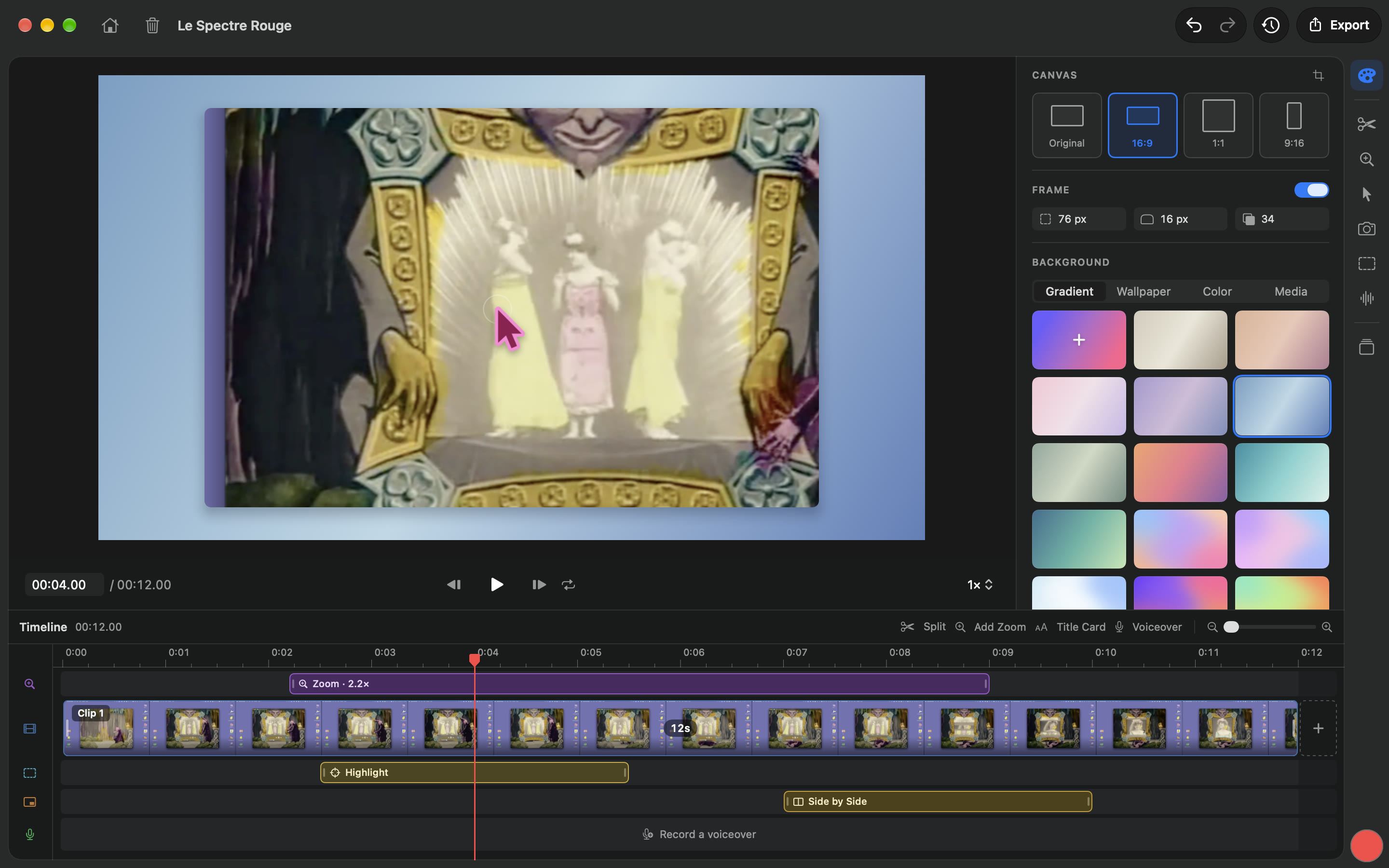
Screenie records your screen and makes the hard work easy.
It zooms in where you click, redraws your cursor, and puts everything neatly together like magic.
Zoom in.
Screenie follows you.
Add a zoom, or let Auto Zooms place them on your clicks and typing. Each one follows the pointer.
- Zoom
- Add Zoom , Auto Zooms
- Tracking
- Loose , Balanced , Tight
- Transition
- Snappy , Smooth , Slow
- Motion blur
- On
Every move.
Made smooth.
Screenie records where your pointer went, then draws it again: smoothed, larger, and sharp at any zoom.
- Motion
- Smoothing , Tilt , Motion blur
- Clicks & Keys
- Animation , Sounds , Keystrokes
- Hide
- When idle , While typing
- Loop
- Ends where it began
Frame it.
Beautifully.
The recording sits in a frame with rounded corners and a soft shadow, on a background of your choosing.
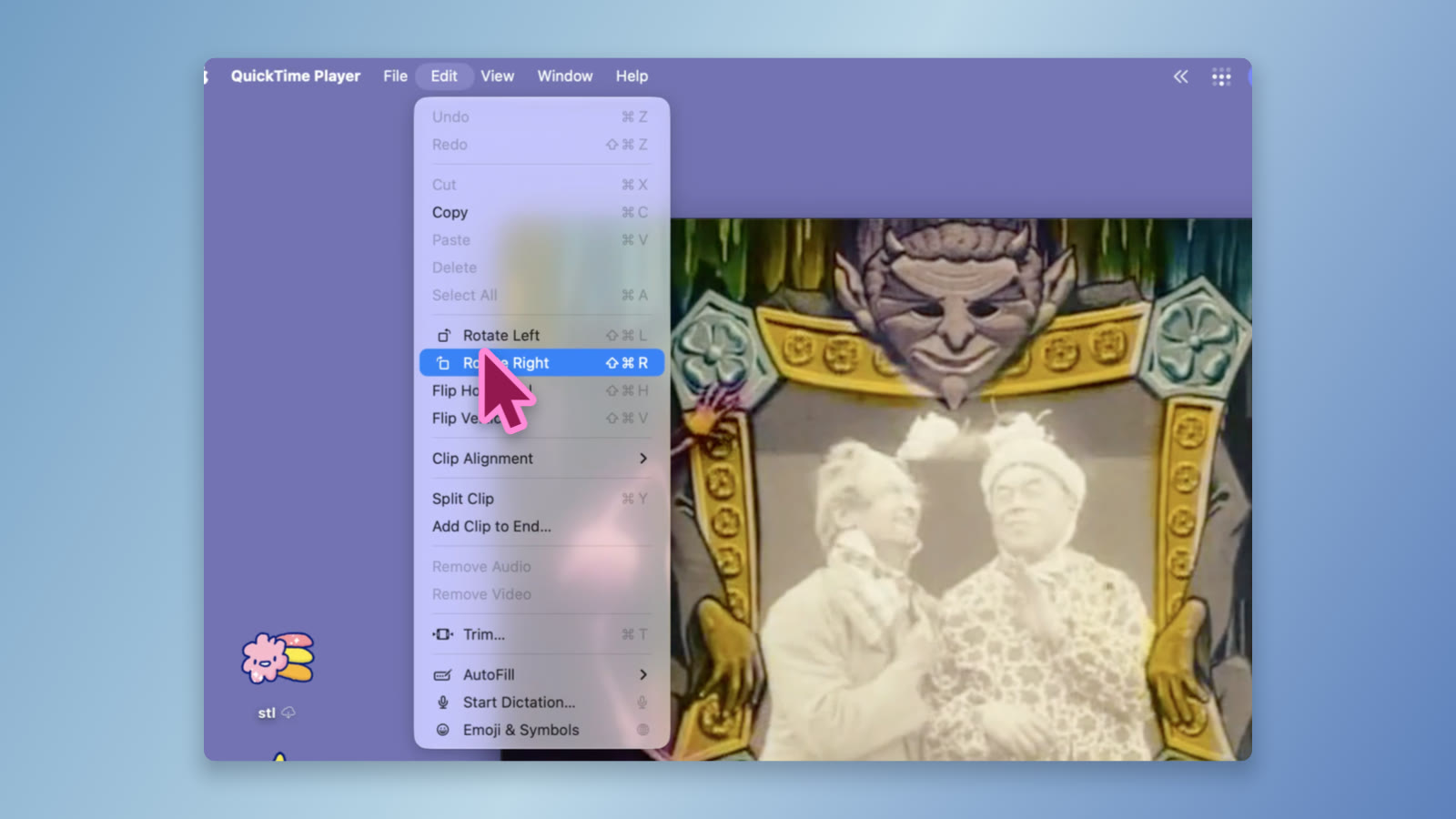 Ocean – 16:9
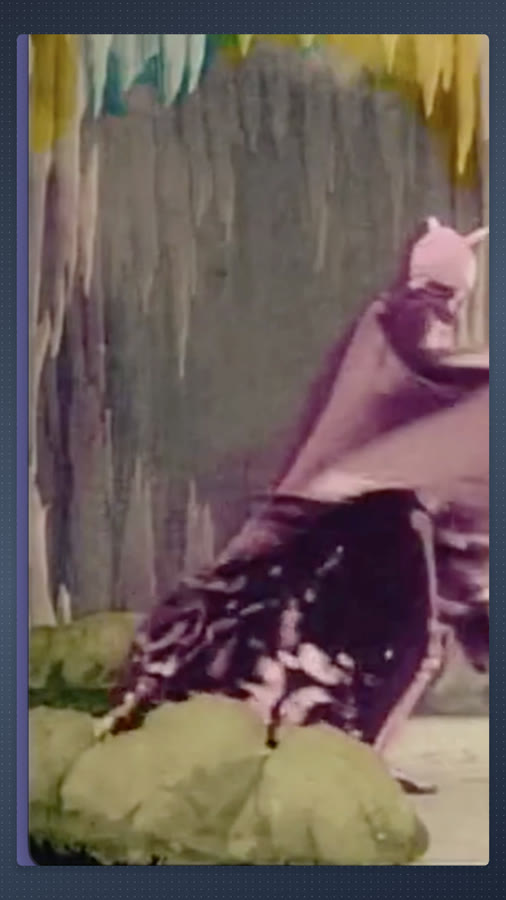 Midnight – Dots – 9:16
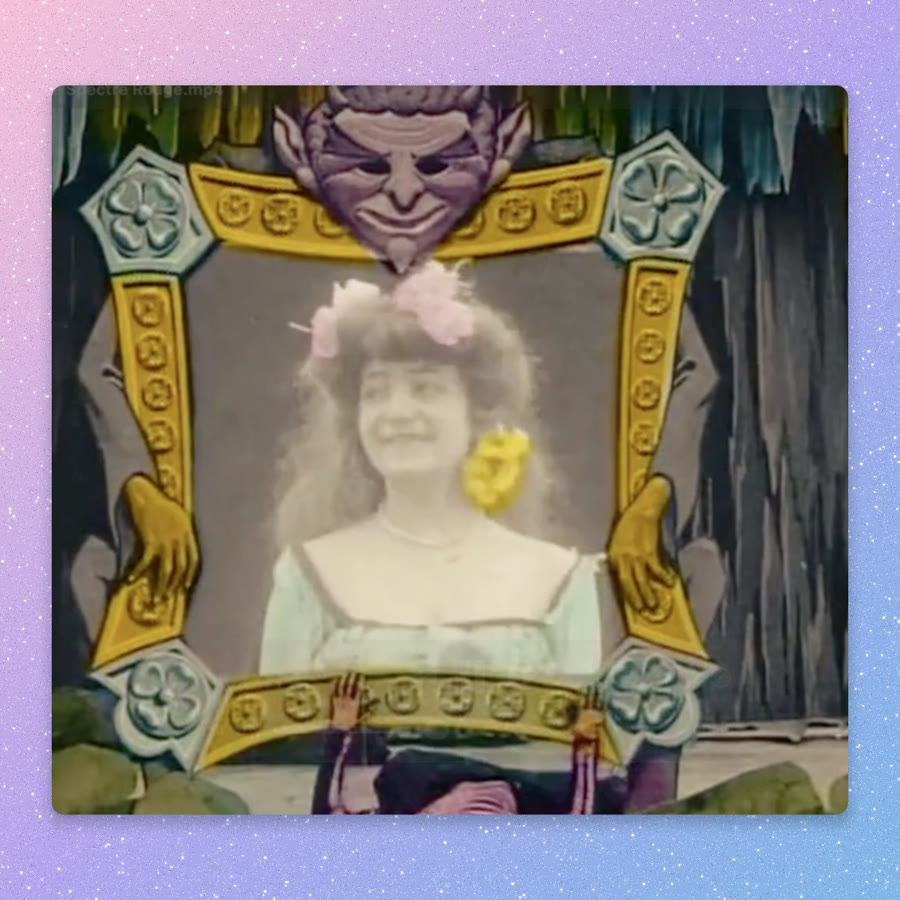 Gradient – Glitter – 1:1
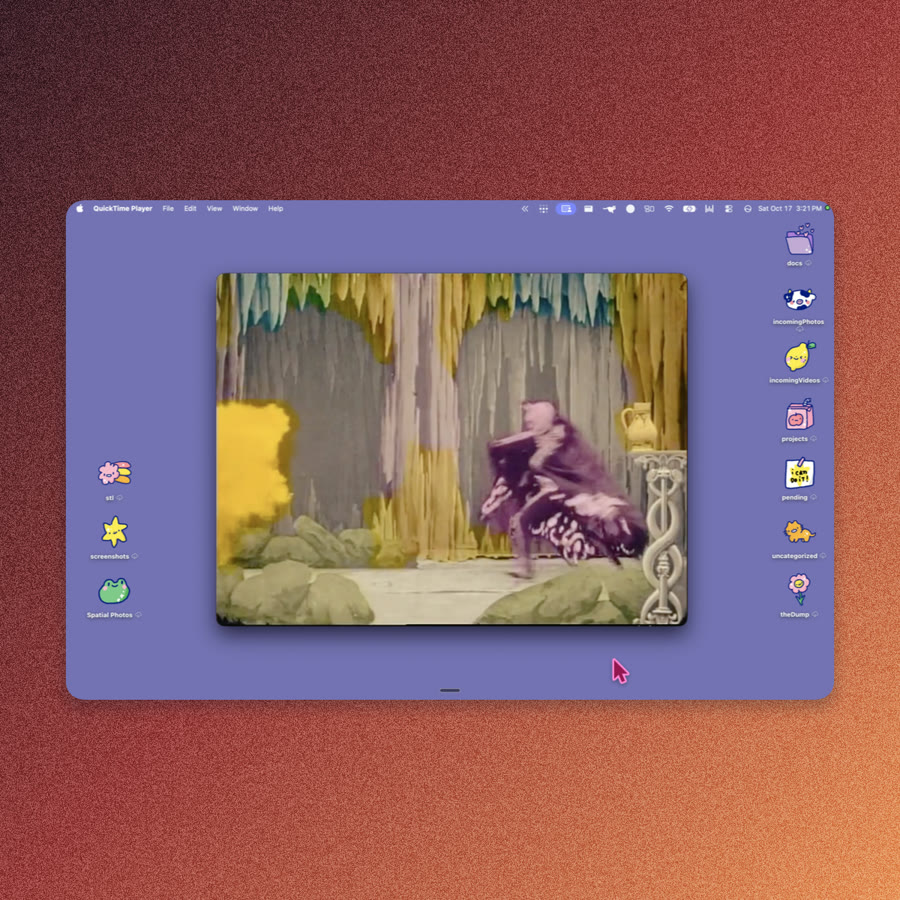 Ember – Grain – 1:1
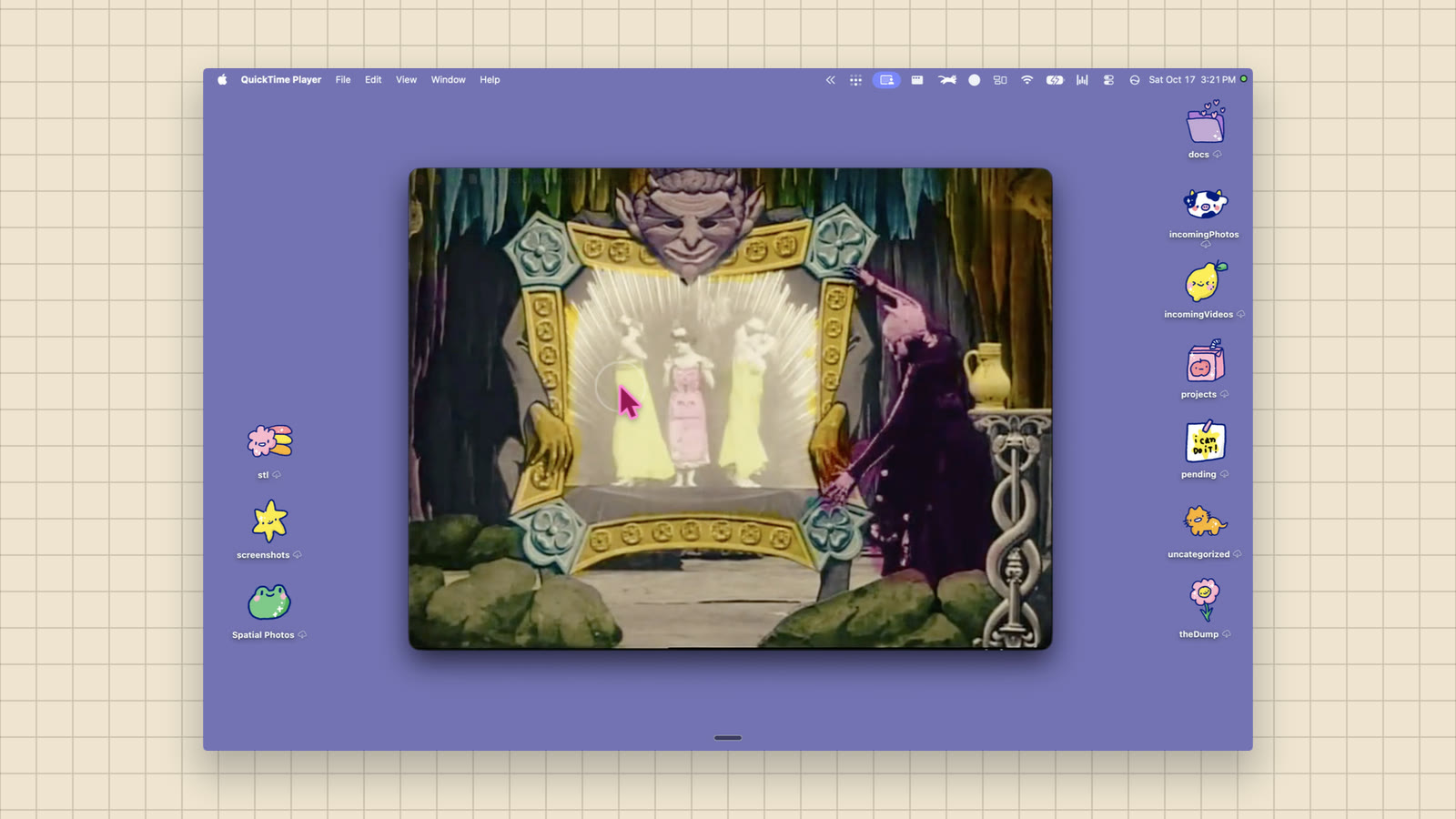 Color – Grid – 16:9
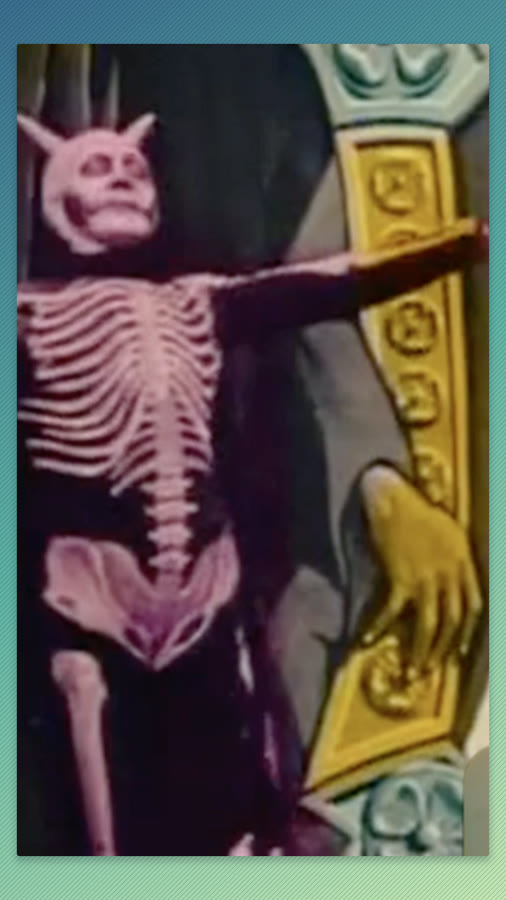 Aurora – Lines – 9:16
- Canvas
- Original , 16:9 , 1:1 , 9:16
- Frame
- Padding , Corners , Shadow
- Background
- Mesh gradients , Wallpaper , Color , Media
- Texture
- Grid , Dots , Lines , Grain , Glitter
You, in
the picture.
Record your camera with your screen. Keep it in a bubble that moves aside from the cursor, or change the layout as you go.
- Layout
- Side by Side , Camera Only , Title Card
- Shape
- Circle , Rounded , Square , Portrait , Landscape
- Framing
- Crop , Zoom , Mirror
Point it out.
Blur what's private.
Draw on the preview to blur something private, spotlight what matters, point with an arrow, number the steps, or add text and pictures.
- Hide
- Blur , Pixelate
- Focus
- Highlight , Spotlight
- Point
- Curved arrows , Numbered steps
- Add
- Styled text , Images
Say it again.
This time better.
Record voiceover over the timeline, keep the best take, and clean up your microphone in one switch.
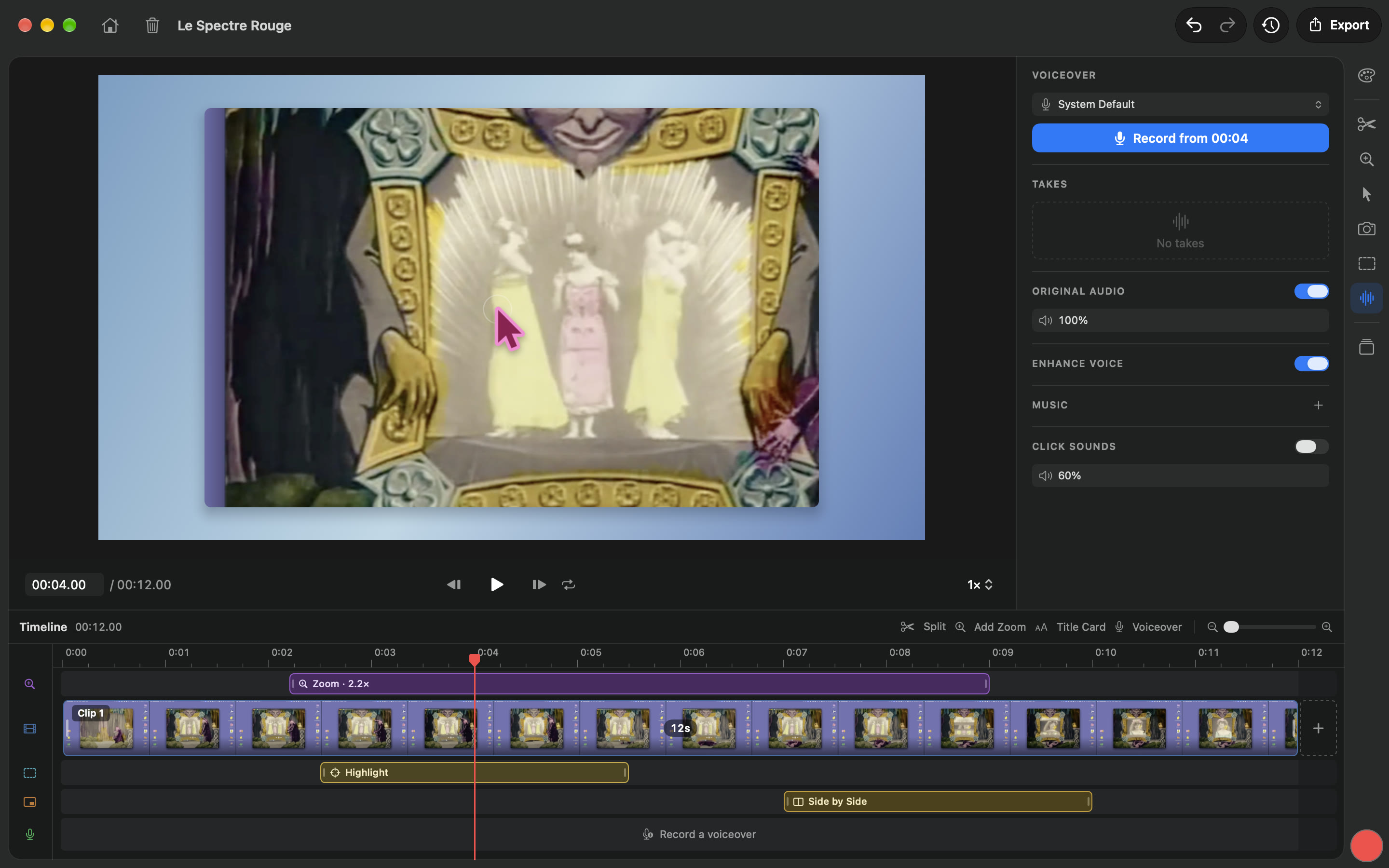
- Voiceover
- Takes, recorded at the playhead
- Enhance Voice
- On
- Music
- Lowers while you talk
Ready to share.
Anywhere.
Export a video, a GIF or an image, or copy it straight to the clipboard. Every project is a file on your Mac.
- Format
- MP4 , GIF , PNG
- Codec
- H.264 , HEVC
- Resolution
- Up to 4K
- Frame rate
- 30 , 60 fps
Questions
What can I record?
A whole display, one window, or an area you drag out, with your camera, your microphone and the sound your Mac plays, each one optional. Press ⇧⌘1 from anywhere to start and stop.
Does it take screenshots too?
Yes. Press ⇧⌘2 to capture a display, a window or an area, then annotate and frame it like a recording, and copy it or save a PNG.
Which Macs does it run on?
Screenie is a native Mac app for macOS 15 Sequoia or later. On macOS 26 its controls use Liquid Glass.
Does anything leave my Mac?
No. There's no account, and nothing is uploaded: recordings, projects and exports are files on your Mac.
Where are my projects kept?
Each recording and screenshot is a .screenie file in Movies › Screenie, saved as you edit, with a preview in Finder. Move it, back it up or send it like any file.
Can I edit a video I didn't record with Screenie?
Yes. Choose Import Video on the start window, then edit it like any recording.
Can I combine recordings?
Yes. Click the + at the end of the timeline to add another project after this one, with its cuts, zooms and annotations. It takes on this project's look.
Can I change the cursor after recording?
Yes. Screenie records where the pointer went and which cursor was showing, then redraws it, so you can smooth it, resize it or hide it later.